
Theodore Lowe, Ap #867-859
Sit Rd, Azusa New York
Find us here
How to Add Fonts in Photoshop: A Step-by-Step Guide
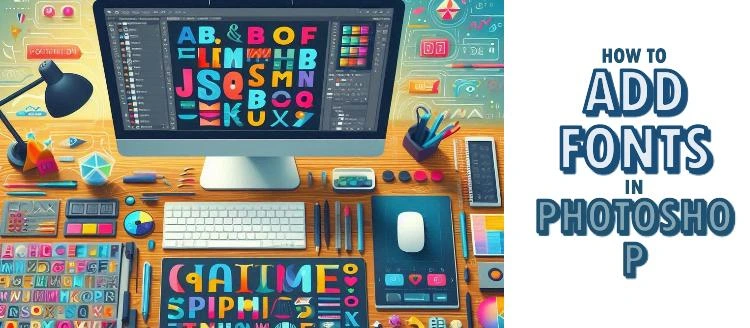
Imagine the excitement of discovering the perfect typeface that captures the essence of your vision. But how do you do it without feeling overwhelmed? Don't worry—you're about to learn the simple steps that will open up a world of font possibilities.
With each new font, you have the chance to transform your designs from ordinary to extraordinary. So, if you're eager to enhance your design toolkit and captivate your audience, keep reading. You're about to unlock the secrets to mastering fonts in Photoshop!
Installing New Fonts
Adding new fonts to Photoshop enhances your design projects. First, download the desired font file to your computer. Then, install it by opening the file and clicking 'Install'. Once installed, restart Photoshop to access the new fonts.
Installing new fonts in Photoshop enhances your design capabilities. It offers a fresh approach to creativity. Follow these simple steps to add fonts effortlessly.
Downloading Fonts From Trusted Sources
Select fonts from reputable websites. This ensures quality and security. Websites like Google Fonts and DaFont offer free downloads. Check the font's license before downloading. Some fonts require permission for commercial use. Always choose fonts that meet your project needs. Downloading from trusted sources protects your computer from harmful files.
Extracting Font Files
Font files often come in compressed formats like ZIP. Locate the downloaded ZIP file on your computer. Right-click the file and select "Extract Here" or "Extract All." This action unzips the files into a new folder. Open the folder to view the font files. The files usually have extensions like .ttf or .otf. These formats are compatible with Photoshop. Ensure you extract all necessary files for installation.
Adding Fonts On Windows
Adding fonts on Windows is simple and enhances your Photoshop projects. First, download your desired font file. Then, right-click and install it to make it available in Photoshop. Enjoy new font styles in your designs.
Adding fonts to Photoshop can enhance your design projects. Windows users have several methods for installing new fonts. Each method is straightforward and doesn't require advanced computer skills. Here’s how to add fonts to your Windows system for use in Photoshop.
Accessing The Fonts Folder
Start by opening the Control Panel. Find the "Appearance and Personalization" section. Click on "Fonts." This opens the Fonts folder where you can view installed fonts. It's the main directory for font files on Windows. You can also access this folder through the Windows search bar. Type "Fonts" and select the folder from the results. This method ensures you are in the right place for font management.
Installing Fonts Through Control Panel
Download your desired font from a reliable source. Save it in an easily accessible folder. Open the Control Panel and go to the Fonts section. Click on "File" in the top menu and select "Install New Font." A dialog box will appear. Navigate to the folder where your font is saved. Select the font file and click "Install." The font will now appear in your Photoshop font list.
Using Drag And Drop Method
Another easy method is the drag and drop technique. First, download the font you want to add. Open the Fonts folder from the Control Panel. Keep both the Fonts folder and the folder with your downloaded font open. Drag the font file directly into the Fonts folder. Windows will automatically install the font. Once installed, the font becomes available in Photoshop. This method is quick and doesn’t require navigating menus.
Adding Fonts On Mac
Adding fonts to your Mac enhances creativity in Photoshop. Open Font Book, select 'Add Fonts,' and choose your desired files. Restart Photoshop to access new fonts seamlessly, enriching your design projects with unique typography.
Adding fonts to Photoshop on a Mac can be a game-changer for your design projects. Imagine having the freedom to use any font you like, whether it's for a professional design or a personal project. Knowing how to add fonts gives you more creative control and can make your work stand out. Let's dive into how you can easily add fonts using the Font Book on your Mac.
Opening Font Book Application
To start adding fonts, you'll first need to open the Font Book application. You can find it by navigating to your "Applications" folder or by using Spotlight Search—simply press Command + Space and type "Font Book." Font Book is your go-to tool for managing fonts on a Mac. If you're like me, you might have felt overwhelmed the first time you saw the vast list of fonts. But don't worry; it's simpler than it looks!
Installing Fonts In Font Book
Once Font Book is open, you can install new fonts with ease. Drag and drop your downloaded font files into the Font Book window. Alternatively, use the File menu and select "Add Fonts" to browse for the font file on your computer. Whether it's a trendy script font or a bold serif, the process is quick and straightforward.
Validating Installed Fonts
After installing, it's crucial to validate your fonts to ensure they work correctly. In Font Book, select the font you just installed and click "File," then "Validate Font." This step checks for any errors and confirms that the font is ready for use. If any issues arise, Font Book will notify you with a yellow or red symbol, prompting you to fix or delete the problematic font. Adding fonts on a Mac is a skill that enhances your design toolkit. Have you ever downloaded a font that just didn't show up in Photoshop? Validating fonts can prevent this common frustration. Start exploring new fonts and let your creativity flow effortlessly in Photoshop.
Using Fonts In Photoshop
Photoshop is a powerhouse tool for designers, and mastering font usage can elevate your projects to new heights. But how do you effectively use fonts in Photoshop? Whether you're creating a logo or designing a flyer, understanding how to manipulate fonts can be a game-changer. Let's dive into the essential steps that ensure your fonts make a lasting impact.
Activating Installed Fonts
Once you've installed a font on your computer, Photoshop should automatically recognize it. If you find yourself asking, "Where's my new font?" ensure it's properly activated in your system's font manager. It's a bit like adding a new book to your bookshelf—make sure it's in the right section so you can find it when you need it.
To confirm, restart Photoshop after installing a new font. This refreshes the application, allowing it to load any newly installed fonts. If you're still having trouble, double-check that the font file is compatible with your operating system.
Selecting Fonts In The Text Tool
Once your fonts are active, it's time to play with them in Photoshop’s text tool. Click the text tool icon, usually found in the toolbar on the left side. When you start typing, a dropdown menu in the top toolbar lets you choose your desired font.
Ever been overwhelmed by the choices? Consider creating a shortlist of favorite fonts. This can save you time and ensure consistency in your designs. You might find that a particular font style resonates with your brand or project theme.
Troubleshooting Font Issues
Encountering issues with fonts not displaying correctly? It happens more often than you'd think. First, check if the font is installed correctly on your computer. Sometimes, simply reinstalling can resolve the issue.
Also, ensure the font file isn't corrupted. Opening the font in another program can help verify its integrity. Lastly, consider updating Photoshop to the latest version, as compatibility issues might arise with outdated software.
What font will you explore next in your Photoshop projects? With these tips, you’re well-equipped to make your designs stand out. Remember, the right font can transform your work from ordinary to extraordinary, so choose wisely!
Managing Fonts For Projects
Easily add fonts in Photoshop by downloading and installing them on your computer. Access new fonts through the Type tool. Customize your project with unique typography and enhance your design's appeal.
Managing fonts effectively in Photoshop can make or break the flow of your design projects. You don't want to be stuck hunting for that perfect font when deadlines are looming. By organizing your fonts smartly and removing unused ones, you can ensure a seamless creative process. Let's dive into how you can make your font management a breeze!
Organizing Fonts For Easy Access
Imagine opening Photoshop and finding the exact font you need in seconds. Sounds like a dream, right? Start by categorizing fonts based on style, such as serif, sans-serif, and decorative. Create folders or use font management software to keep them neatly organized. Think about which fonts you use most frequently. Place these at the top of your list or mark them as favorites. This simple step saves time and keeps your workflow smooth. Here's a fun tip: name your folders in a way that sparks creativity. For instance, "Classic Elegance" for serif fonts or "Modern Vibes" for sans-serif fonts. This can inspire you as you design, adding a personal touch to your projects.
Removing Unused Fonts
Ever felt overwhelmed by the sheer number of fonts cluttering your system? It's time to clean house! Identify fonts you haven't used in the past six months. Deleting these can speed up your software and declutter your workspace. Consider this: every unused font is a distraction. Removing them helps you focus on the tools that truly enhance your design. Why not make a habit of revisiting your font collection once a month to keep things tidy? Ask yourself: do you really need that font from a project three years ago? If it hasn't been touched, it's probably time to let it go. This not only frees up space but also keeps your creative energy focused and fresh. By managing your fonts effectively, you enhance your productivity and creativity in Photoshop. What's your strategy for keeping your font collection under control?
Tips For Choosing Fonts
Choosing the right fonts in Photoshop can enhance your design. First, download your desired font file from a trusted site. Next, install it on your computer, and Photoshop will automatically recognize it. Experiment with different styles and weights to find the perfect match for your project.
Adding new fonts to Photoshop can elevate your design projects. But how do you choose the right fonts? Here are some helpful tips. These guidelines can improve your typography choices. They ensure your designs look professional and appealing. Choosing the right fonts is as crucial as the design itself.
Understanding Font Styles
Every font style has a unique personality. Serif fonts are classic and traditional. Sans-serif fonts are modern and clean. Script fonts bring elegance and creativity. Display fonts are bold and attention-grabbing. Each style suits different design needs. Understanding these styles helps you choose better.
Pairing Fonts For Design Harmony
Pairing fonts can enhance your design's visual appeal. Choose fonts that complement each other. A serif font with a sans-serif can create balance. Avoid using too many fonts in one design. Stick to two or three fonts for coherence. Ensure the fonts match the design's tone and message. Consistency is key for visual harmony.
Conclusion
Adding fonts in Photoshop is simple and rewarding. It enhances your designs. First, choose your desired font. Then, download it safely. Next, install the font on your computer. Open Photoshop and check if the font appears. If it does, you're ready to use it.
Experiment with different styles and sizes. Fonts add personality to your projects. Keep your designs fresh and exciting. Practice often to gain confidence. Enjoy the creative process. With these steps, you can easily add fonts. Your designs will thank you.
Related blog posts
How to Isolate Hair for Background Removal in Photoshop
Are you tired of spending hours trying to perfectly isolate hair from a background in Photoshop, only to end up with messy, unnatural edges? You're not alone.

Clipping Path Associate has empowered businesses globally for over 12 years. A passionate team is dedicated to providing meticulous photo editing services. Expertise is offered in a range of areas, from precise clipping paths to flawless image retouching. The company offers straightforward yet impactful solutions tailored for photographers, e-commerce enterprises, advertising agencies, web design firms, magazine publishers, printing companies, and more.
We Accept : 